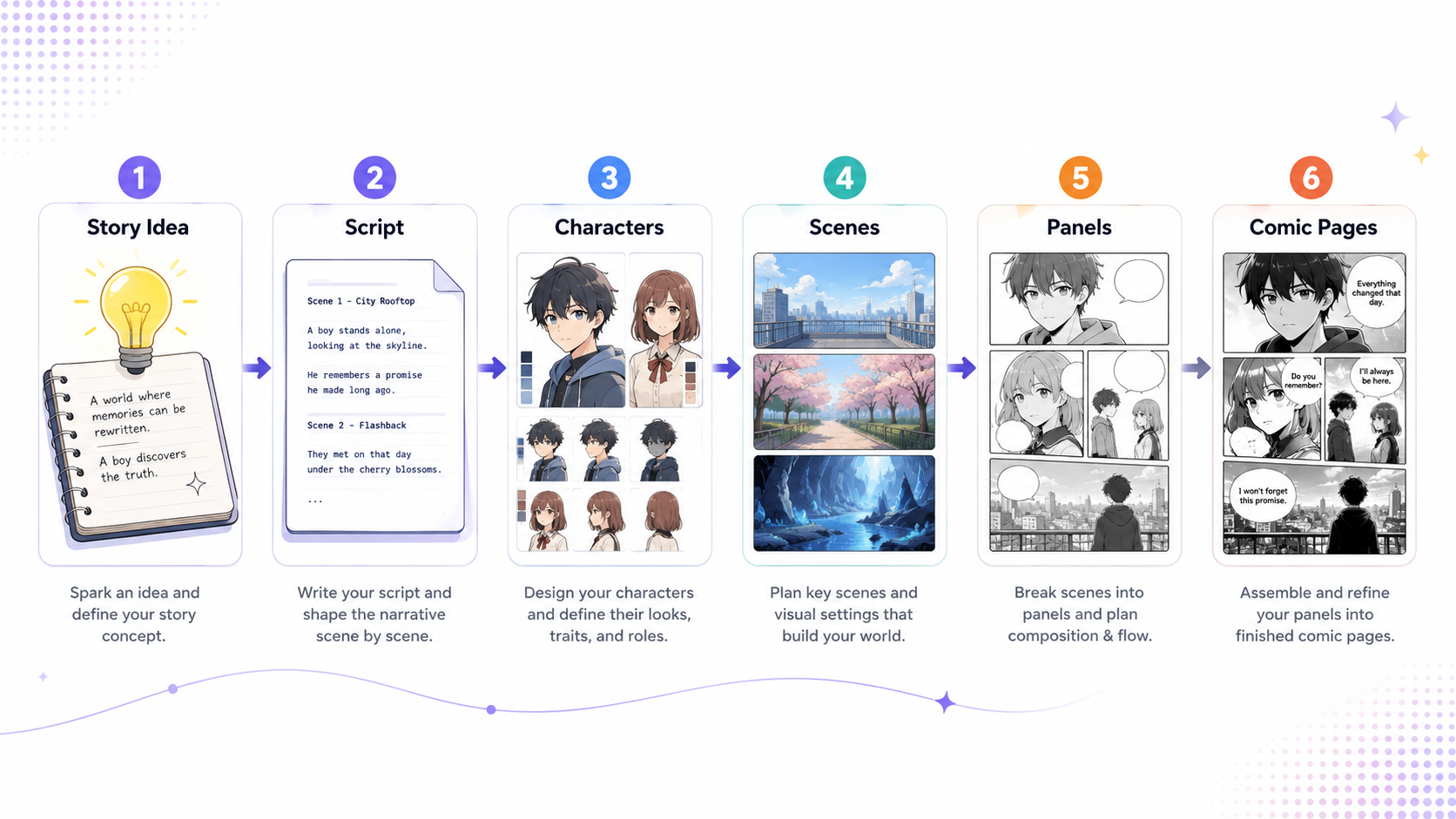
GroupCombo Tutorial: From One Request to a Reusable Content Template
 Camika
GroupCombo is the “combined content template workbench” in CamikaLabs. It is designed to turn a complex creative request into multiple content groups, such as body text, titles, cover images, supporting images, video clips, tags, and more, then execute them together and combine the results into a complete output.
Unlike ordinary one-time generation, GroupCombo focuses on creating a reusable template first, then using that template repeatedly.
What It Is Good For
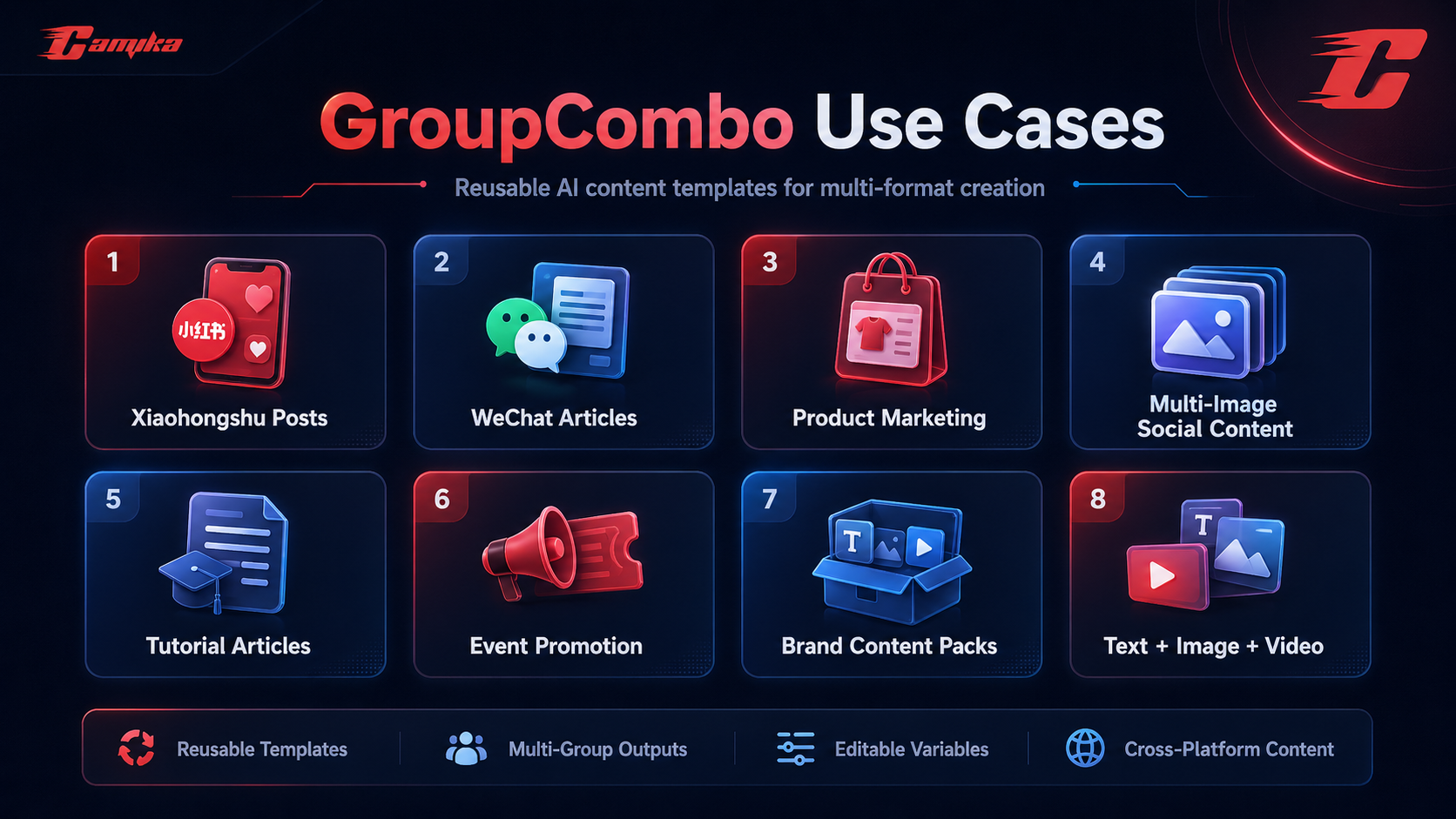
GroupCombo is suitable for:
- Xiaohongshu-style image-text posts
- WeChat official account articles
- Product marketing pages
- Multi-image social media content
- Tutorial articles with images
- Event promotion materials
- Brand content packs
- Combined text + image + video content
Example:
Create a spring skincare tutorial for Xiaohongshu, including a title, body text, cover image, 3 step-by-step images, and hashtags.
GroupCombo will split this into multiple content groups instead of generating only one paragraph of text.
Basic Workflow
1. Create a GroupCombo Template
In GroupCombo, start by entering your full content request. The clearer the request, the more stable the generated template will be.
A good request should include:
Content topic
Target platform
Required outputs
Style and tone
Target audience
Whether images or videos are needed
Example:
Create a Xiaohongshu-style city weekend travel guide template for young users aged 20-30.
It should include an eye-catching title, guide body text, cover image, 3 attraction images, closing engagement copy, and hashtags.
The tone should be relaxed, practical, and shareable.
After submission, the system starts the template creation process.
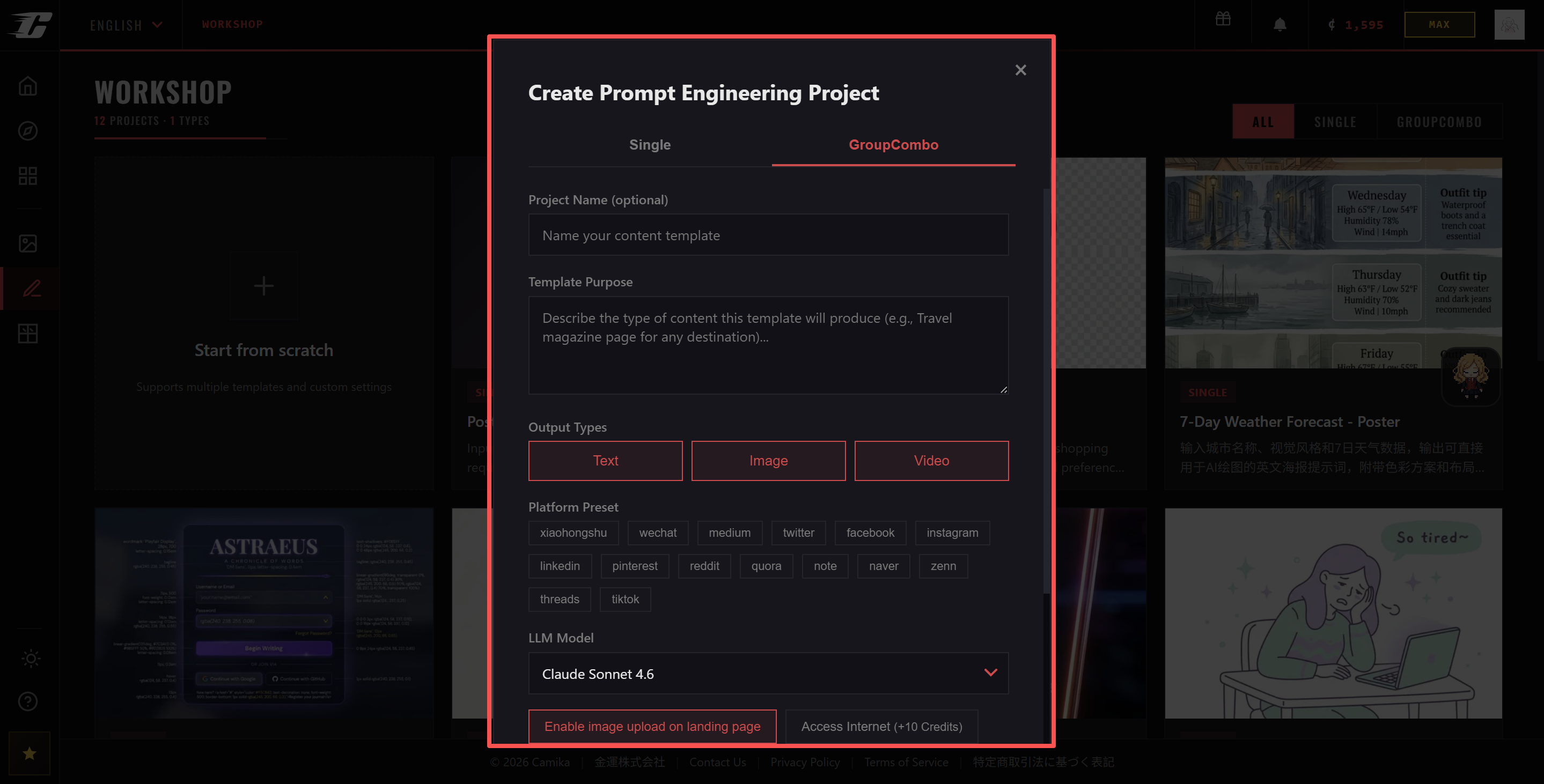
2. The System Generates a Blueprint
GroupCombo first uses an LLM to analyze the request and generate a blueprint. The blueprint defines which content groups the template contains.
It may produce a structure like:
cover_image       Cover image
main_title        Title
travel_guide      Guide body text
spot_images       Attraction images
closing_text      Closing engagement copy
hashtags          Hashtags
Each group has a type:
text
image
video
If one group needs to reference previous content, the system can create a dependency. For example, an image group may reference the guide text so the images better match the article.
3. The System Generates PE for Each Group
After the blueprint is confirmed, GroupCombo generates prompt-engineering data for every group, including:
system_prompt
user_prompt_template
variables
title
This allows each content group to know exactly what it should generate.
For example, the body group writes the guide, the cover image group creates the visual cover, and the hashtag group generates platform tags. They are generated separately instead of being mixed into one output.
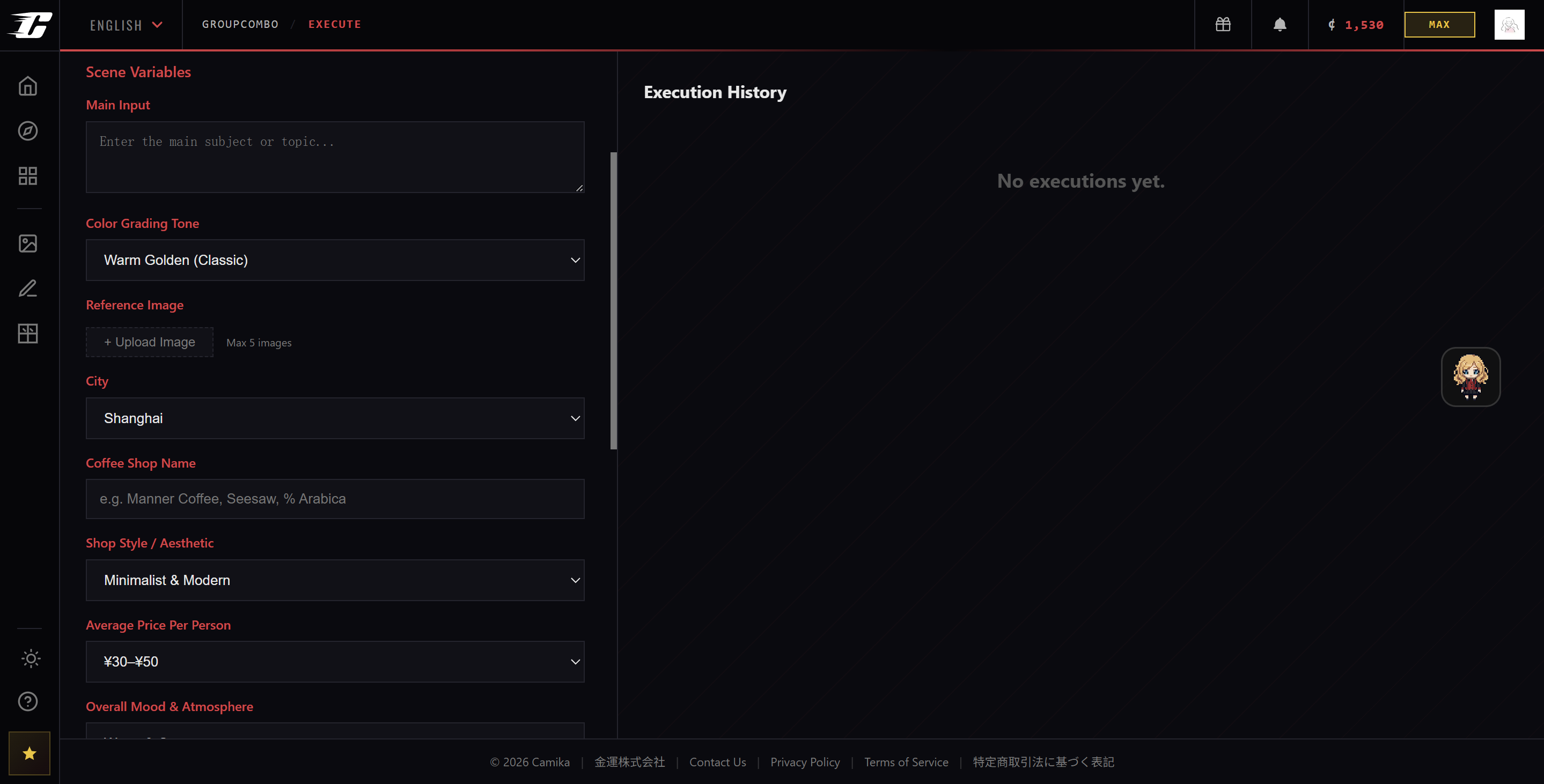
4. Fill In Scene Variables
Once the template is created, the system extracts editable scene variables and turns them into a form.
You may see fields like:
City name
Trip duration
Target audience
Budget range
Style keywords
Reference image
Product name
Campaign theme
Each time you run the template, you only need to change these variables to create new content.
For example, the same travel guide template can be executed with:
City name: Hangzhou
Trip duration: 2 days
Style keywords: relaxing, healing, photo-friendly
Then next time:
City name: Chengdu
Trip duration: 3 days
Style keywords: food, slow-paced, youthful
This is what makes GroupCombo more valuable than one-time generation.
5. Execute the Template
After filling in the variables, click execute. The system creates an execution and starts running all groups.
Execution follows dependency rules:
- Groups without dependencies can run in parallel
- Groups depending on earlier content wait for those groups to finish
- Image groups can reference text content
- Image-to-image groups can reference previously generated images
- Upload groups directly use user-uploaded assets without calling a generation model
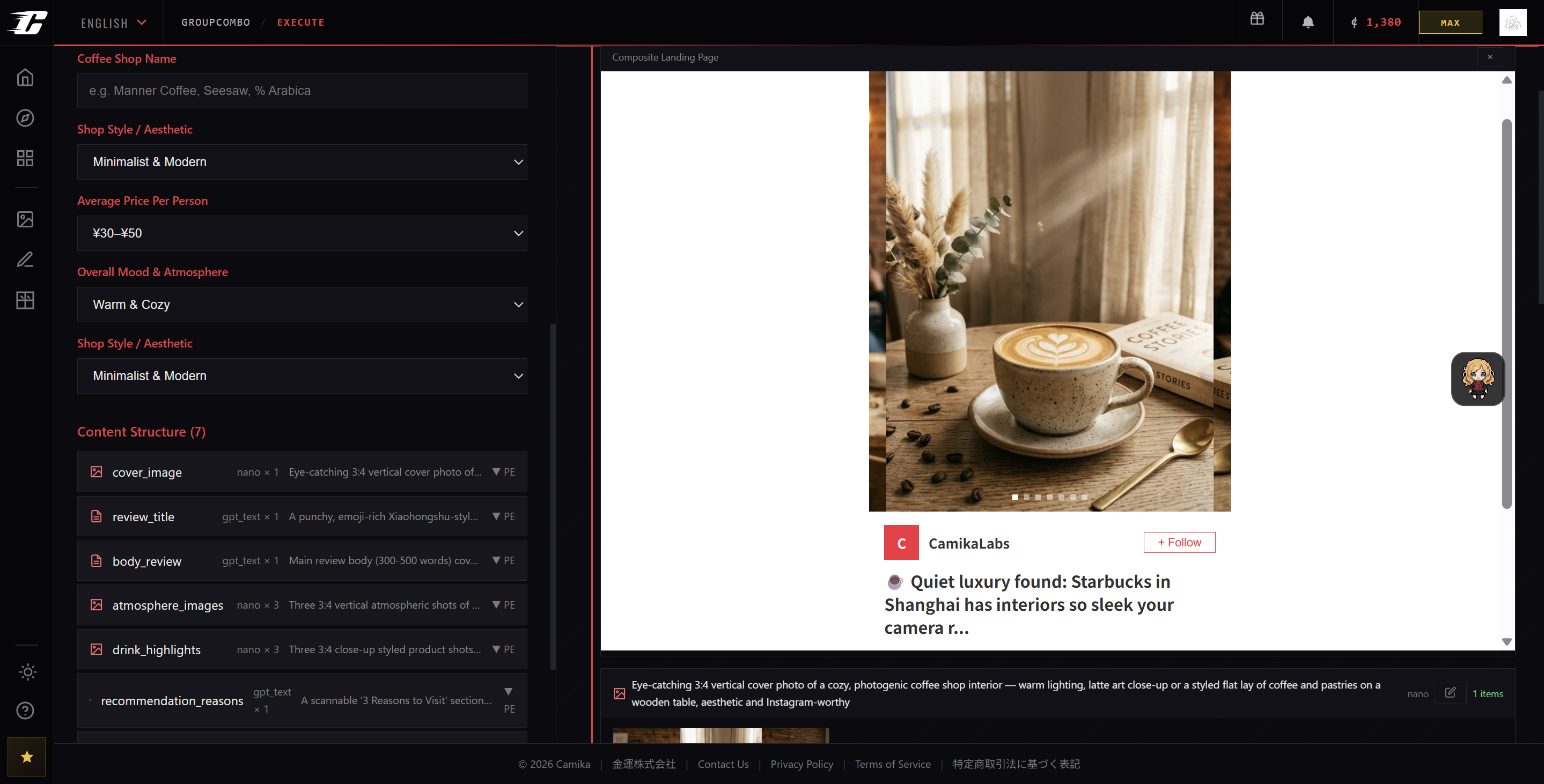
The results are saved per group and finally combined into a complete result page.
6. Review and Adjust the Results
After generation, you can review the result of each group.
Common actions include:
View body text
View images
Set cover
Edit prompt
Retry a single group
Re-execute the template
Delete history
Export results
If only one image is unsatisfactory, you do not need to rerun the entire task. You can retry only that specific group.
Complete Example
Goal: Create a Xiaohongshu skincare tutorial template.
Input request:
Create a Xiaohongshu skincare tutorial template for women aged 25-35.
Each execution should let the user fill in skin type, season, core product, and skincare goal.
Outputs should include: title, cover image, tutorial body text, 3 step-by-step images, tips, and hashtags.
The tone should be professional but friendly, suitable for saving and sharing.
GroupCombo may generate:
main_title          text    Generate a Xiaohongshu title
cover_image         image   Generate a tutorial cover image
intro_text          text    Generate opening recommendation copy
routine_steps       text    Generate skincare routine steps
step_images         image   Generate 3 step-by-step images
tips_text           text    Generate usage tips
hashtags            text    Generate hashtags
Scene variables may include:
skin_type           Skin type
season              Season
product_name        Core product
skin_goal           Skincare goal
tone                Tone
ref_image           Reference image
For execution, fill in:
Skin type: Combination oily skin
Season: Summer
Core product: Lightweight hydrating serum
Skincare goal: Oil control, hydration, non-comedogenic care
Tone: Relaxed, trustworthy, like a friend’s recommendation
The final output will be a complete Xiaohongshu-style image-text content package, not just an isolated paragraph or image.
Tips for Writing a Good Request
Good Request
Create a Xiaohongshu cafe review template.
The target users are young people aged 20-30 who enjoy photography and weekend outings.
Each execution should allow users to fill in city, cafe name, style, recommended drink, and average price.
Outputs should include title, cover image, body text, 3 ambience images, recommendation reasons, and hashtags.
The tone should be relaxed, lifestyle-oriented, and save-worthy.
Weak Request
Help me make Xiaohongshu content.
This is too vague. The system does not know the topic, platform, number of images, tone, or audience.
Usage Suggestions
Use GroupCombo for scenarios where you need to repeatedly produce the same kind of content. For example, weekly product notes, review posts, tutorials, marketing assets, and branded content.
If you only need a temporary paragraph of copy, a single generation tool is enough.
If you need multiple related outputs, GroupCombo is the better choice.
FAQ
What Is the Difference Between GroupCombo and Combo?
Combo is more like a one-time combined task. GroupCombo is a template workbench: create the template first, then fill in variables and execute it repeatedly. In the current project, GroupCombo is the main version, while Combo remains in the code but is hidden from Desktop.
Why Generate a Blueprint First?
The blueprint plans the content structure. Without it, the system would not know how to split a complex request into groups or which groups should depend on others.
Why Do Some Images Reference the Body Text?
Because an image group can use ref_group to reference the body text as creative context. This helps generated images match the topic more accurately.
Are Upload Groups Charged?
Upload groups do not call an AI generation model, so they usually do not incur model generation costs. However, template creation, web search, PE, or other AI-generated groups may still cost credits.
When Should I Retry a Group?
Retry a single group when the overall result is usable but one group is not satisfactory. For example, if the body text is good but the cover image is weak, retry only the cover image group.
Summary
GroupCombo turns complex creative requests into reusable templates. It first uses a blueprint to plan the structure, then generates independent PE for each content group, and finally lets users run the template repeatedly through scene variables.
Its best use case is not generating a one-time result, but continuously producing a category of content, such as social media posts, marketing image-text content, tutorials, brand asset packs, article illustrations, and multi-platform content templates.
Article map
What Is GroupCombo?
GroupCombo is CamikaLabs’ combined content template workbench for turning complex creative requests into reusable AI content templates.
GroupCombo is the combined content template workbench in CamikaLabs. It helps users turn a complex creative request into multiple content groups, such as body text, titles, cover images, supporting images, video clips, tags, and more.
The key difference between GroupCombo and ordinary AI generation is reusability. Instead of generating a one-time result, GroupCombo first creates a reusable template. Users can then run the same template repeatedly by changing scene variables.
This makes GroupCombo suitable for repeatable content production, including social media posts, article packages, marketing assets, tutorial content, and brand content workflows.
What GroupCombo Is Good For
GroupCombo is useful for repeatable content scenarios that require multiple connected outputs, such as text, images, videos, tags, and publishing assets.
GroupCombo is designed for creative tasks that require more than one output. It is especially useful when a content task includes several connected parts, such as a title, article body, cover image, step-by-step images, hashtags, and video clips.
Typical use cases include Xiaohongshu-style image-text posts, WeChat official account articles, product marketing pages, multi-image social media content, tutorial articles with images, event promotion materials, brand content packs, and combined text-image-video content.
For example, a user can ask GroupCombo to create a spring skincare tutorial for Xiaohongshu, including a title, body text, cover image, three step-by-step images, and hashtags. GroupCombo will split the request into multiple content groups instead of generating only one paragraph of text.
How the GroupCombo Workflow Works
GroupCombo follows a structured process: create a template, generate a blueprint, create prompt-engineering data, fill scene variables, execute the template, and review results.
The GroupCombo workflow starts when the user enters a full content request. A good request should include the content topic, target platform, required outputs, style and tone, target audience, and whether images or videos are needed.
After submission, GroupCombo uses an LLM to analyze the request and generate a blueprint. This blueprint defines which content groups the template contains, such as cover image, main title, guide body text, supporting images, closing copy, and hashtags.
Next, the system generates prompt-engineering data for each group, including system prompt, user prompt template, variables, and title. This allows each group to generate its own output independently while still belonging to the same content workflow.
Once the template is created, GroupCombo extracts editable scene variables. Users can fill in variables such as city name, trip duration, product name, target audience, budget range, campaign theme, or reference image.
Finally, the user executes the template. The system runs all groups according to dependency rules, saves the results, and combines them into a complete output page.
Why GroupCombo Uses Blueprints and Content Groups
Blueprints help GroupCombo split complex creative requests into clear content groups with specific roles and dependencies.
A blueprint is the structural plan behind a GroupCombo template. It tells the system which content groups are needed and how they should work together.
For example, a travel guide template may contain groups such as cover image, main title, travel guide body, attraction images, closing text, and hashtags. Each group can have a different type, such as text, image, or video.
Blueprints are important because complex creative requests often include multiple outputs. Without a blueprint, the system would not know how to divide the task, which parts should be generated first, and which groups should reference earlier content.
This structure makes GroupCombo more reliable for multi-format content production.
Scene Variables Make Templates Reusable
Scene variables allow users to reuse the same GroupCombo template with different inputs, making content production faster and more scalable.
Scene variables are editable fields extracted from a GroupCombo template. They allow users to run the same template multiple times with different inputs.
For example, a city weekend travel guide template may include variables such as city name, trip duration, target audience, budget range, style keywords, and reference image. One execution could use Hangzhou as the city, while another execution could use Chengdu.
This is what makes GroupCombo more valuable than one-time generation. Users do not need to rebuild the same content structure again and again. They only need to update the variables and execute the template.
For creators, marketers, and content teams, this can significantly improve efficiency when producing recurring content formats.
How GroupCombo Executes Multi-Group Content
GroupCombo executes content groups based on dependency rules, allowing some groups to run in parallel while others reference earlier outputs.
When a GroupCombo template is executed, the system creates an execution and starts running all content groups.
Groups without dependencies can run in parallel. Groups that depend on earlier content will wait for those groups to finish. For example, an image group can reference the generated article body so that the visual output better matches the text.
GroupCombo also supports image-to-image dependencies and upload groups. Image-to-image groups can reference previously generated images, while upload groups use user-uploaded assets directly without calling a generation model.
After execution, the results are saved per group and combined into a complete result page.
Reviewing, Retrying, and Adjusting Results
GroupCombo allows users to review each generated group and retry only the parts that need improvement.
After generation, users can review the result of each content group separately. They can view body text, view images, set a cover, edit prompts, retry a single group, re-execute the template, delete history, or export results.
This group-level review process is useful because not every part of a multi-output task needs to be regenerated. If the body text is good but the cover image is weak, the user can retry only the cover image group.
This improves both efficiency and control, especially for content workflows that include many related outputs.
GroupCombo vs. Combo
Combo is closer to a one-time combined task, while GroupCombo focuses on reusable templates and repeated execution.
The main difference between GroupCombo and Combo is reusability.
Combo is more like a one-time combined task. It can help users generate multiple related outputs in a single workflow, but it is not primarily designed around reusable templates.
GroupCombo, by contrast, is a template workbench. Users first create a template, then fill in variables and execute it repeatedly. This makes it better for recurring content scenarios, such as weekly product posts, review templates, tutorial formats, marketing assets, and branded content packages.
In the current CamikaLabs project, GroupCombo is the main version, while Combo remains in the code but is hidden from Desktop.
Key data
- Core workflow steps
- 6 Source: GroupCombo workflow: create template, generate blueprint, generate PE, fill variables, execute, review results · 2026
- Supported content group types
- 3 Source: GroupCombo supports text, image, and video content groups · 2026
- Example output groups in a skincare tutorial template
- 7 Source: main_title, cover_image, intro_text, routine_steps, step_images, tips_text, hashtags · 2026
- Recommended reading time
- 7 minutes Source: Editorial estimate based on tutorial length · 2026
Where Camika fits
- What Is GroupCombo? GroupCombo is the combined content template workbench in CamikaLabs. Users need a structured way to turn complex creative requests into reusable content templates instead of generating isolated one-time outputs.
- What GroupCombo Is Good For GroupCombo is suitable for Xiaohongshu-style image-text posts, WeChat official account articles, product marketing pages, multi-image social media content, tutorial articles with images, event promotion materials, brand content packs, and combined text-image-video content. Content teams often need to produce multiple connected assets for one campaign, including titles, body text, images, videos, tags, and publishing materials.
- How the GroupCombo Workflow Works GroupCombo uses a blueprint to define which content groups the template contains and how they should be generated. Users need complex requests to be automatically split into clear content groups so each part can be generated accurately and reused later.
- Scene Variables Make Templates Reusable GroupCombo extracts editable scene variables so users can run the same template multiple times with different inputs. Users want to reuse a successful content structure without rebuilding the prompt or workflow from scratch every time.
- Reviewing, Retrying, and Adjusting Results GroupCombo allows users to retry only one content group when the overall result is usable but one part needs improvement. Users do not want to regenerate an entire multi-part content package when only one image, title, or text section needs adjustment.
FAQ
What is GroupCombo in CamikaLabs?
GroupCombo is a combined content template workbench in CamikaLabs. It turns complex creative requests into reusable templates with multiple content groups, such as text, images, videos, tags, and publishing assets.
How is GroupCombo different from one-time generation?
One-time generation produces a single result for one request. GroupCombo creates a reusable template first, then lets users run that template repeatedly by changing scene variables.
What types of content can GroupCombo create?
GroupCombo can create multi-part content such as Xiaohongshu posts, WeChat articles, product marketing pages, tutorial articles, event promotions, brand content packs, and combined text-image-video outputs.
Why does GroupCombo generate a blueprint first?
GroupCombo generates a blueprint first to plan the content structure. The blueprint defines which content groups are needed, what type each group is, and how groups depend on each other.
When should I use GroupCombo?
Use GroupCombo when you need to repeatedly produce the same kind of multi-part content, such as weekly product notes, review posts, tutorials, marketing assets, or branded content templates.